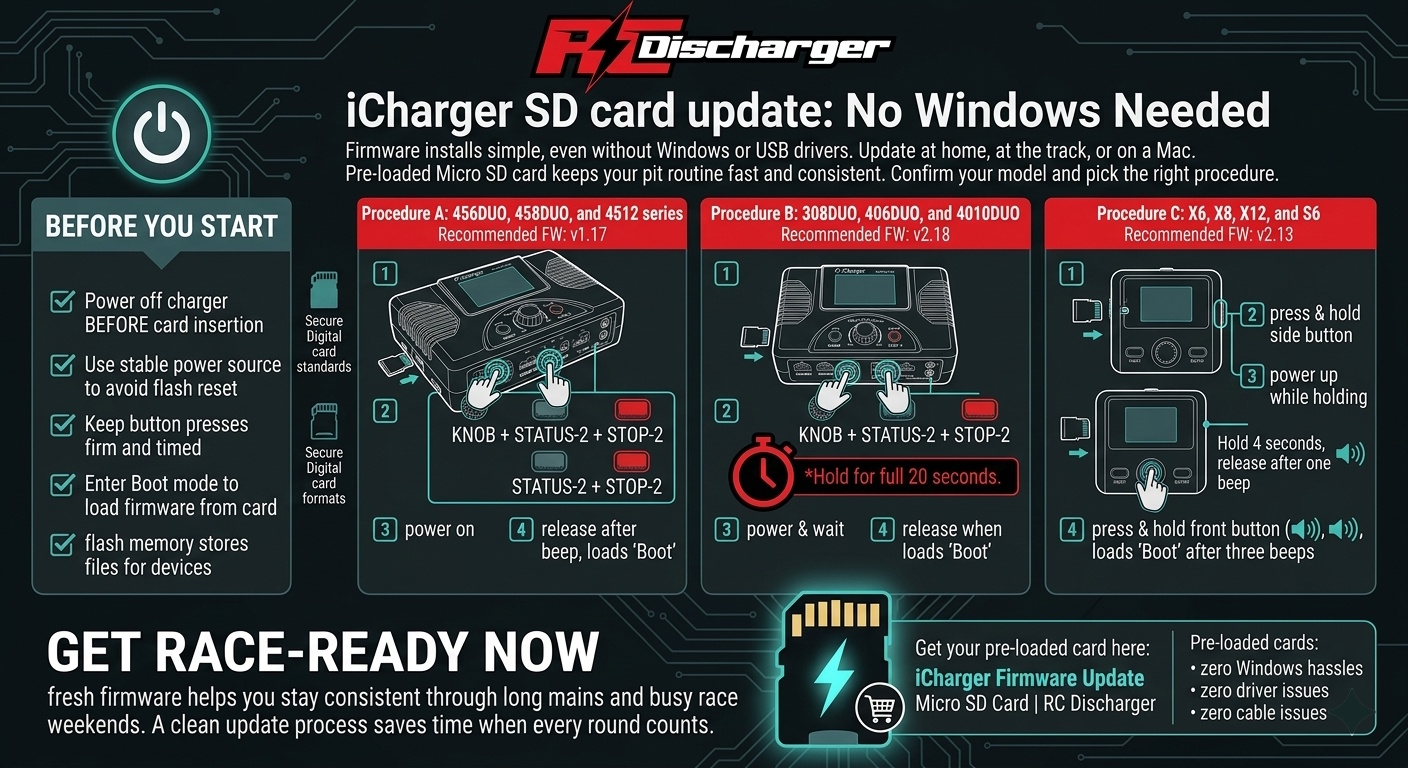
iCharger SD card update: No Windows Needed
iCharger SD card update makes firmware installs simple, even without Windows or USB drivers.
Moreover, you can update at home, at the track, or on a Mac with ease. Therefore, a pre-loaded Micro SD card keeps your pit routine fast and consistent.
First, confirm your iCharger model and pick the matching procedure below. Next, follow each step in order to avoid a failed flash.
Before you start
First, power the charger off before you insert the Micro SD card. Also, use a stable power source so the charger never resets mid-flash.
In addition, keep button presses firm and timed as listed. Consequently, the charger enters Boot mode and loads firmware from the card.
For background, SD cards use flash memory to store files for devices. You can review Secure Digital card standards and formats if you want deeper context.
Procedure A: 456DUO, 458DUO, and 4512 series
Recommended firmware: v1.17
- Insert: Plug the RC Discharger Micro SD Card into your charger slot.
- The combo: Press and hold KNOB + STATUS-2 + STOP-2.
- Power up: While holding the buttons, power on the charger.
- Release: As soon as the screen changes and shows “Boot”, release the buttons.
Procedure B: 308DUO, 406DUO, and 4010DUO
Recommended firmware: v2.18
- Insert: Plug the RC Discharger Micro SD Card into your charger slot.
- The combo: Press and hold KNOB + STATUS-2 + STOP-2.
- Power & wait: While holding the buttons, power on the charger. Then keep holding for a full 20 seconds.
- Release: After 20 seconds, when the screen shows “Boot”, release the buttons.
Procedure C: X6, X8, X12, and S6
Recommended firmware: v2.13
- Insert: Plug the RC Discharger Micro SD Card into your charger slot.
- Press: Press and hold the button to the left.
- Power up: While holding the button, power on the charger. Then hold for 4 seconds, and release after one beep.
- Press: Next, press and hold the button toward you for 4 seconds.
- Release: After three beeps, the charger enters “Boot” mode. Then release the button.
Get race-ready now
Now you can finish an iCharger SD card update with no drivers, no cables, and zero Windows hassles.
Additionally, fresh firmware helps you stay consistent through long mains and busy race weekends. Ultimately, a clean update process saves time when every round counts.
Get your pre-loaded card here: iCharger Firmware Update Micro SD Card | RC Discharger