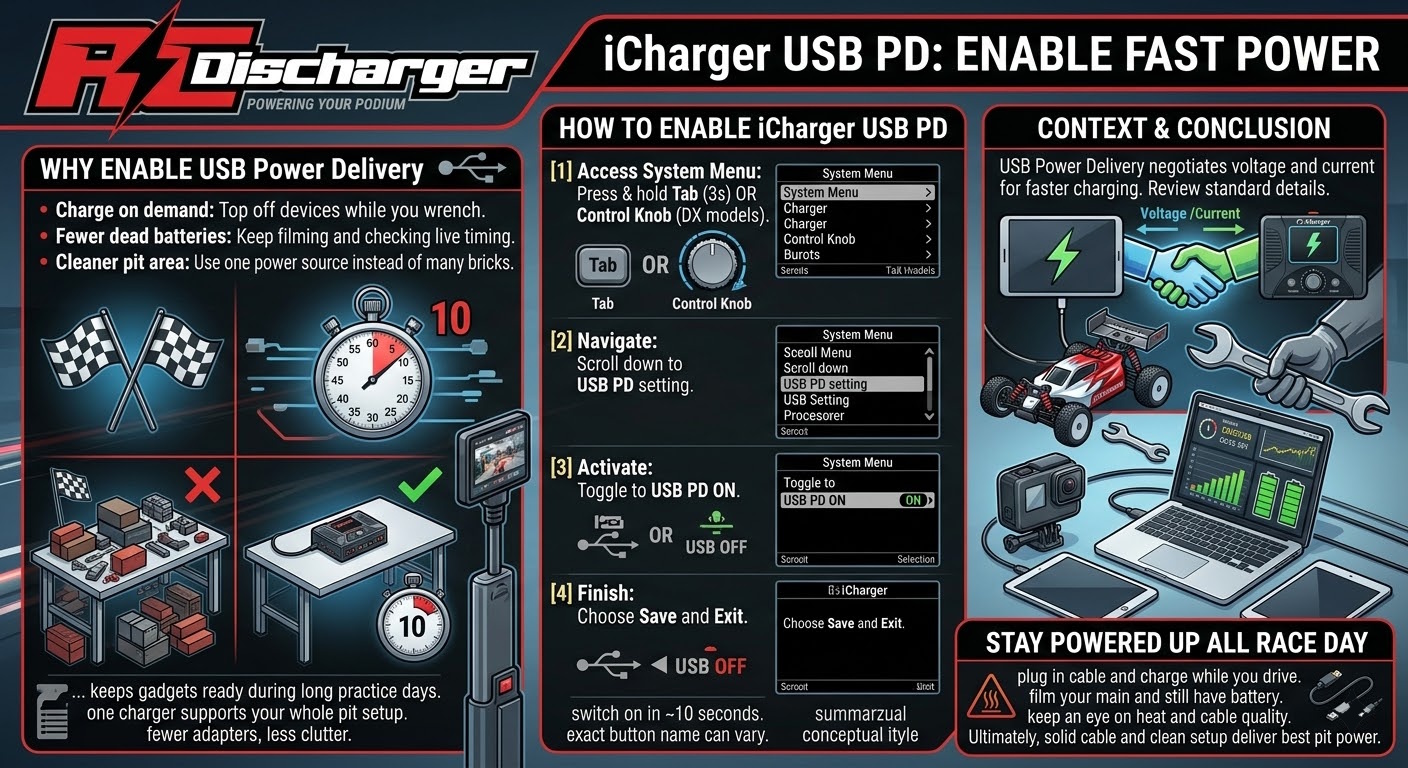
iCharger USB PD: Enable Fast Power
iCharger USB PD lets your charger power a phone, tablet, or action camera at the track.
By default, iCharger keeps the USB port off to stay focused on charge control. However, you can switch on Power Delivery in about 10 seconds.
As a result, you stop hunting for wall outlets in the pits. Instead, you turn your charger into a handy, high-speed power source.
Why enable USB Power Delivery
First, fast USB power helps during long practice days. Moreover, it keeps your lap timer, tablet, or GoPro ready between rounds.
Additionally, one charger can support your whole pit setup. Therefore, you pack fewer adapters and reduce clutter on your table.
- Charge on demand: Top off devices while you wrench.
- Fewer dead batteries: Keep filming and checking live timing.
- Cleaner pit area: Use one power source instead of many bricks.
How to enable iCharger USB PD
Next, follow these steps and enable iCharger USB PD from the System menu. Notably, the exact button name can vary by model.
- Access System Menu: Press and hold the Tab button for 3 seconds. Alternatively, use the Control Knob on DX6, DX8, or DX12 models.
- Navigate: Then scroll down to the USB PD setting.
- Activate: Now toggle it to USB PD ON.
- Finish: Finally, choose Save and Exit to keep the change.
For context, USB Power Delivery negotiates voltage and current for faster charging on supported devices. In addition, you can review the standard details on USB Power Delivery specifications.
Stay powered up all race day
Afterwards, plug in your cable and charge while you drive. Consequently, you can film your main and still have battery for the next round.
Meanwhile, keep an eye on heat and cable quality for best results. Ultimately, a solid cable and a clean setup deliver the most consistent pit power.